Interfolio

Interfolio is CMSRU’s online system for faculty activity reporting. It provides a single, convenient location for faculty to document and maintain their teaching, scholarship, and service activities.
Over time, Interfolio will support multiple institutional processes, including annual faculty evaluations, appointments and promotions, and required faculty reporting for CMSRU and CUHC (such as annual reports, external agency reporting, and accreditation reviews).
The system is being introduced in phases, beginning with the Annual Faculty Evaluation. For this initial cycle, faculty are asked to enter their 2025–2026 teaching and service activities and to import, review, and confirm their scholarly work.
Interfolio is designed to reduce the time and effort spent each year collecting faculty information while improving consistency and accuracy. By updating their record annually, faculty will automatically maintain an up-to-date CV, teaching dossier, and educational portfolio—all of which can be downloaded for personal use at any time.
Interfolio can import scholarly publications from sources such as PubMed, Google Scholar, ORCID, and Scopus, as well as external grant data from Cayuse, minimizing manual data entry. Teaching and service activities are entered directly by faculty and saved year to year, allowing ongoing activities to be easily confirmed rather than re-entered.
Rowan Login to Interfolio
Log in to Interfolio with your Rowan NetID and password. If you have never activated your Rowan NetID account, you must do so before logging into Interfolio.
- Go to netid.rowan.edu
- Select First Time Users
- Activate your Rowan NetID, email, and Duo Authentication accounts. For step-by-step instructions, view the short video or read the article created by IT support
- Watch Video: Managing your NetID Password and DUO
- Article: Establishing Rowan NetID Account Article
Rowan Technology Support
-
E: support@rowan.edu | P: 856-256-4400 (Press 2 for Live Tech Support)
-
Live Support Hours:
-
Monday – Thursday: 8:00 AM – 8:00 PM | Friday: 8:00 AM – 6:00 PM
-
Completing and Submitting Your Evaluation
Once logged into Interfolio, you will be on your Home page.
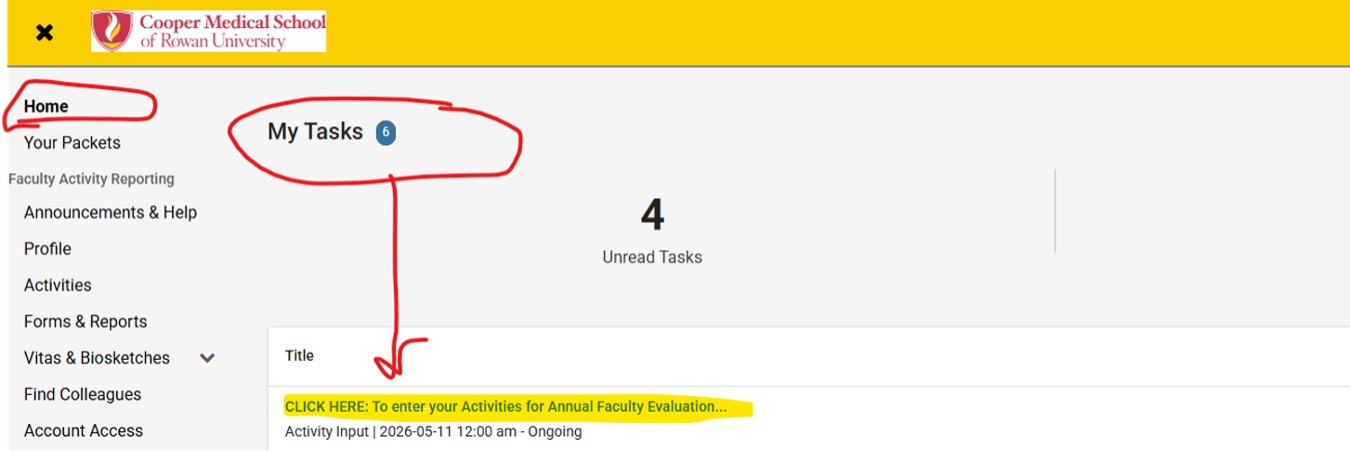
- Under My Tasks
- CLICK HERE: To enter your Activities for Annual Faculty Evaluation
- You will be taken to your Activities page. Complete each activity section.
- For each activity section, click the +ADD
- Enter individual activities following the guidelines and fields. Fields with an * are required.
- Once an activity is entered, click Save and Add Another (if you have multiple activities within the section) or click Save and Go Back.
- Once you save an item, you have the ability to edit the item by clicking on the pencil icon on the right.
- Scholarly Activity Section has an IMPORT
First step: Import all publications from Medline/PubMed.
- Click Add
- Click Medline/PubMed Import
- Click Continue
- Click Search
recommend select search by author
Type name
If common name, you may want to add in additional search terms by typing AND (in caps) and keywords related to your specific research area.
- Verify citation is your publication.
- Accept publication
From Google Scholar/Scopus Accounts: This is a secondary source to import from, and we highly recommend that each faculty member have an account. It will add book chapters, books, and various other types of publications that may not be sourced in PubMed. Imports from Google Scholar use a BibTeX file format. Please refer to the video below to learn how to import from Google Scholar: Click Here to View.
From ORCID accounts: If you have an ORCID account established, refer to the video below on how to import from ORCID: Click Here to View.
Activities entered on your behalf by administrative staff require your verification. Items to pay special attention to:
- Start date – should be the month/year the activity actually started (based on CV), not July 2025 if possible.
- End date on activities is ongoing unless there is a specific end date during this academic year for that activity.
- Carefully review the Professional Organizations section and the Administrative Service section to be sure that activities are placed correctly. Admin Service/Committee work: each must categorize the activity (service type)*. Examples of admin service and correct service type selection:
Admin Service Service Type Ad Hoc Reviewer Editorial Position NIH Reviewer NIH Grant Review Panel Residency Program Interviewer CUHC Admissions Committee CMSRU Red Cross Organization Community Service - Make sure the scholarship is imported from Medline. Review/Confirm all publications. NOTE: Medline does not import books, book chapters, etc. You must manually enter OR import from Google Scholar with instructions listed in Section 2 above.
- Faculty must complete the following sections:
- Faculty Development – note topic name, location held, and date attended.
- LCME – provide #hours of Fac Development and # of hours of service to CMSRU for the year
- Summary & Goals – provide summative comments for this year and goals for next year in terms of teaching, research/scholarship, and service to medical school/cooper, etc.
Step One: Submitting Your Activities:
- Once all activities are completed, click PREVIEW (top right of the Activities section page) to review the submission and be sure all information is to your liking.
- Click SUBMIT For Review (top left of page)
Step Two: Submitting Your Case to Division Head
- Go to Your Packets on the left bar.
- Click on your Name/Packet
- You will see two tabs: Overview and Packet. Click on Packet. This takes you to your evaluation form.
- Click on Regenerate.
- Click on your evaluation and view your form to be sure all looks good.
- Click Submit on the right-hand side.
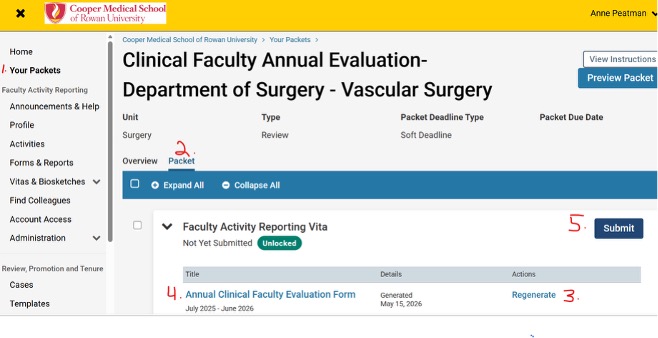
Your evaluation will now be sent to your Division Head/Chair to complete their portion.
Brief video: Sending Your Case to Division Head/Dept. Chair

Click here to view.
Admin Staff – Emulating User in Faculty Activity Reporting (FAR)
For Administrative Staff entering information for a faculty member, you must Emulate the User. To do that, follow these steps from the left-bar navigation:
- Click on Administration
- Click on Administration
- Scroll to Tools and Click on Emulate User
- Click on Total column next to Department/ Division Assigned
- Pick the surgeon’s name you wish to emulate
- You will be taken to their homepage
- Enter activities from there
Division Head Evaluation
Brief Video: Click Here for Division Head Instructions
There are 3 steps for a division head to complete their portion of a faculty member’s annual evaluation.
- You will receive an email from Interfolio when a faculty member has submitted their evaluation to you.
- When ready to complete your comments, click on the link provided in the email or go to your Interfolio home page, where you will see individual names under Tasks.
- Click person’s name. It will take you to Case Materials
- Click Read Case - review the materials submitted. You can download and print out if you wish. You can zoom in and out.
- Click Return to Case - top right
- Scroll down to Internal Sections
- You will see a purple triangle exclamation point that says you have an item to submit - click VIEW
- Scroll down under Required Items -forms. You will see a Division Head form assigned to you - click Fill out Form
- Go back to Case materials page
- Scroll down to Internal Sections
- Click on Division Head Review
- Go up to top of page and click Share
- Click with the Candidate
- It will take you to an email screen. Fill in subject and body of your email
- Go back to Case materials page
- Go to top right, and click on the button that says Send Case
- Click Send Forward to Chair Final Review

You can fast-forward through any section of a video or increase the playback speed to 1.25x or higher using the controls in the bottom-right corner.
General questions:
Please contact the Office of Faculty Affairs:
- Anne Peatman, MBA
Assistant Dean for Faculty Affairs
peatmana@rowan.edu - Julieann Braun, MLIS
Faculty Affairs Specialist
braunju@rowan.edu
Interfolio Support
E: interfolio-support@elsevier.com | P: 1-833-844-2118
For assistance with entering activities or submitting your evaluation, live support agents are available to walk you through the process step-by-step.